Meeting room guide
Each meeting room contains a screen with a built-in PC which you can sign into, or connect your laptop using one of the cables. There is also a camera and microphone available so groups of staff can take part in online meetings.

Turning the system on
If you’ve been in any of the University teaching rooms, you’ll recognise the control panels in Walter Bower House meeting rooms.
Press Display On and Off to turn on the screen. The volume is often turned down so if you’re planning to use the speakers, turn the volume dial up.

Use the built-in PC
Use the built-in PC to to use the webcam and microphone in the room.
Select ‘PC’ on the control panel to use the PC.

If the PC has been turned off, you may need to press the On button behind the screen.

Log in with your University username and password and open Microsoft Teams.
Before you join your Microsoft Teams meeting, check the device settings in Teams and make a test call. Read the ‘Manage your call settings in Teams‘ guide on the Microsoft website for more information.
You may need to manually adjust the camera so that it captures everyone in the room.
The microphone will pick up everyone’s voices in the room, so there’s no need to join with additional headsets or laptops.
Connect your own laptop
Connect your own laptop to share content with others in the room, like PowerPoint presentations or documents.
You cannot connect your laptop to the room webcam or microphone. This means if you have arranged a Teams meeting, log in to the built-in PC instead.
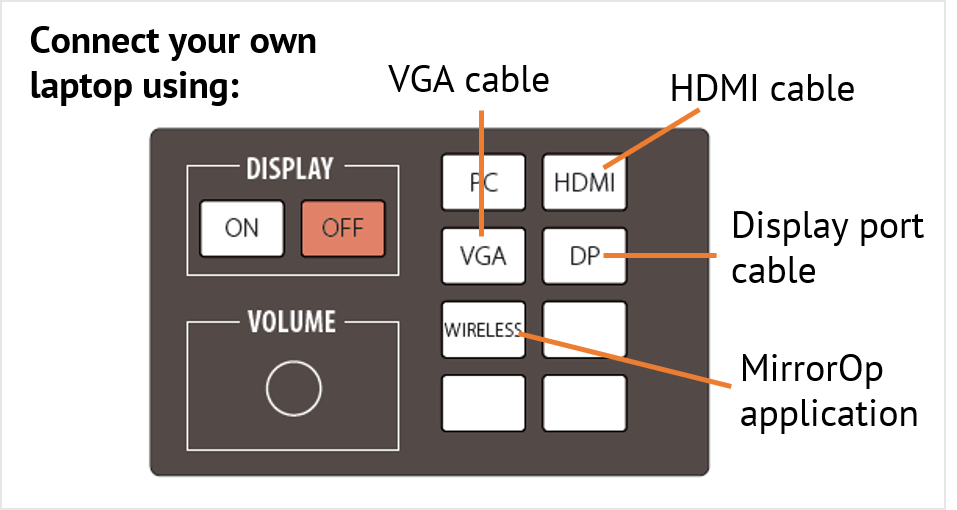
Using a cable
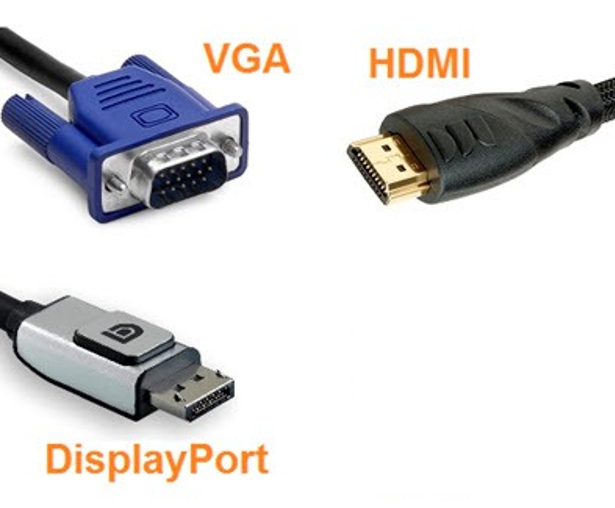
You can connect your laptop using one of the three cables:
- VGA; this is cable only carries video, not sound, to the screen. This means it’s suitable for PowerPoint presentations and co-authoring documents, but not videos.
- HDMI; most laptops have a HDMI port. This cable carries sound as well as video to the screen, which allows you to play videos.
- Display Port; similar to HDMI, this cable carried sound and video to the screen.
Wirelessly via MirrorOp
There’s also the MirrorOp application which you can download from the Software Centre. This app is for staff only, so if you’re meeting with University visitors, advise that they should use a cable instead.
If you’ve booked a meeting room, we recommend downloading the MirrorOp app ahead of time.
Tip for Windows laptops
Adjust the display settings using the keyboard shortcut Windows + P
- Sharing a PowerPoint presentation and need to see the presenter notes? Select Extend
- Co-authoring a document and need to see it in front of you and on the screen? Select Duplicate

Watch the meeting room demo
IT Services have created a short 4-minute video to demonstrate these points.
Watch the video: ‘How to use the meeting room technology at Walter Bower House.’
Printed guides
There are also guides available in each room to help you get connected.

Book an AV induction
If it’s your first time at Walter Bower House or you need a quick refresher on how to connect your laptop, contact the IT Service Desk. IT/AV technicians are on hand to walk you through it during a short 1-to-1 session and answer any questions you may have.